Search for answers or browse our knowledge base.
User Interface and Portfolio Features
Student User Interface
When logging in, the student will see the portfolios for which they have purchased access rights. Open a portfolio by clicking its icon.
In the top-right corner, you will find your account settings. If you use the Workseed learning environment, you can switch between the NursED portfolio and Workseed.

Choosing language
You can change the interface language in your account settings. To access your account, click your profile picture in the top-right corner of the screen. In the dropdown menu, select “My Account”. In the view that opens, you will find the language setting under the “Account Settings” section. Change the language and click the “Save Changes” button at the bottom of the page.
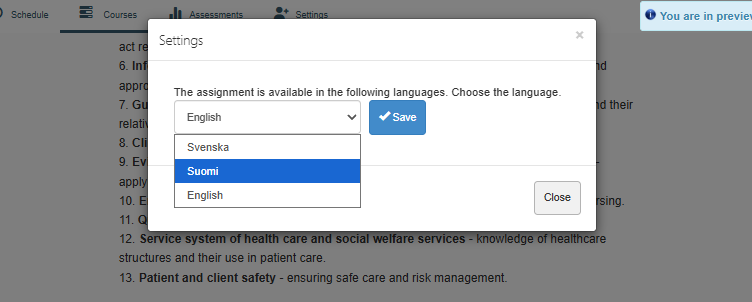
When you open your selected portfolio for the first time, the platform will ask which language you want to use for the portfolio. After this, you can easily change the portfolio language using the Settings button at the bottom of each portfolio page.
Adding a teacher
A student can invite their teacher to follow their portfolio. Once invited, the teacher can monitor the entries made in the portfolio in real time, confirm them (similar to clinical supervisors), and provide feedback.
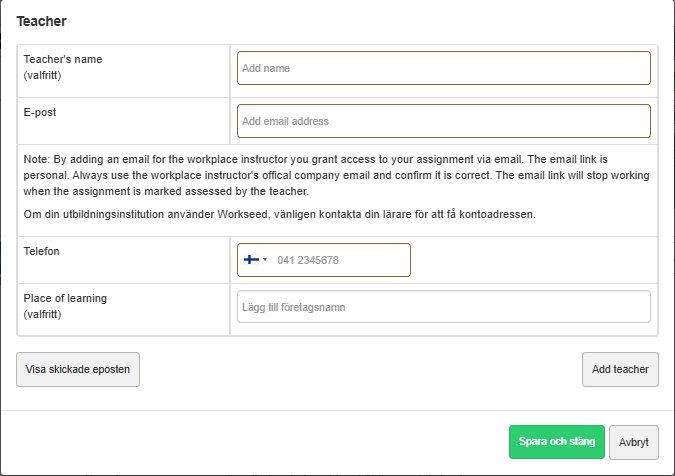
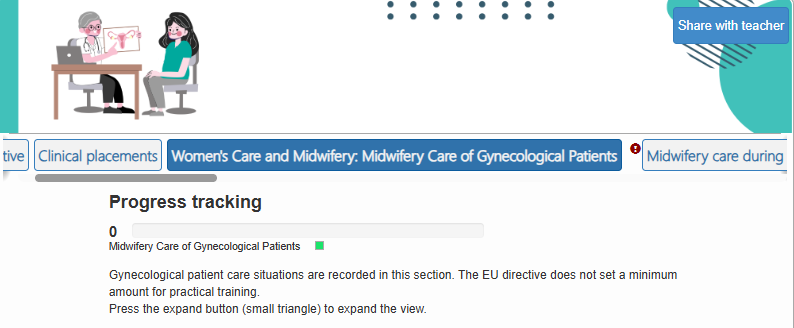
The teacher is added to a specific portfolio. Open the portfolio, and at the top of the view, you will see a button labeled “Share with Teacher”. Click the button and enter your teacher’s name, email address, phone number, and the official name of the educational institution in the window that opens.
An email address is sufficient for sharing, but we recommend adding all the details.
If your institution uses Workseed, confirm the teacher’s account address with them.
You can remove a teacher’s access to your portfolio at any time.
The teacher will then receive an email notification. By clicking the link in the email, they will gain access to the portfolio.